
AIOffices - Main Image

AIOffices - Video

Default Gallery

Category Operations

AIOffices

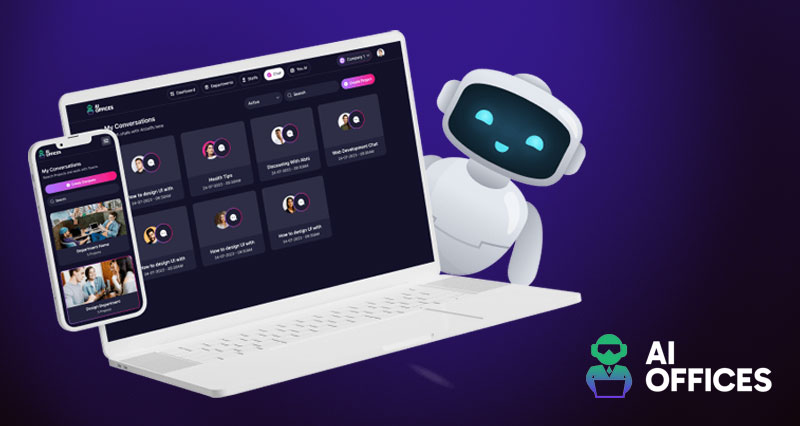
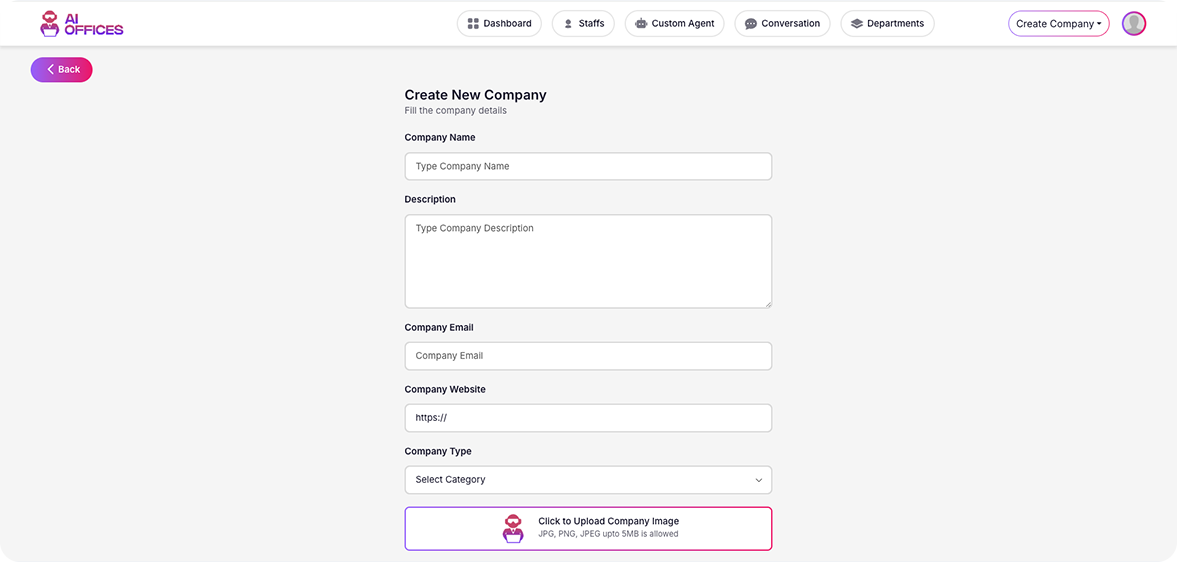
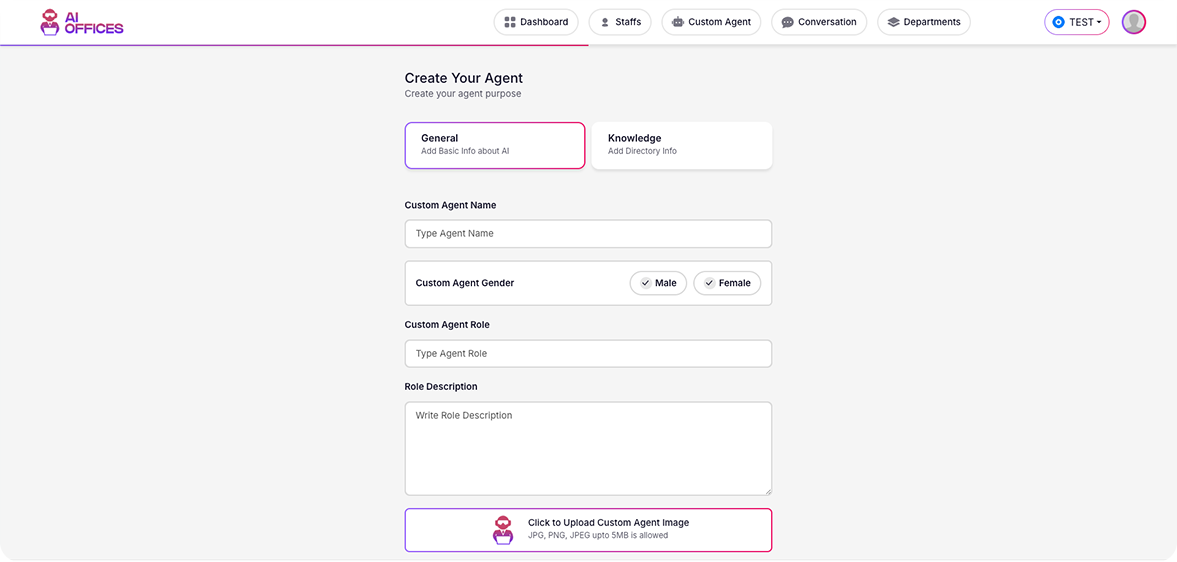
Create a complete team of AI office workers. They’re dependable, customizable, and efficient. Let them handle finances, business management, customer support, and more.
$89.00

$37.00

Select a plan View plan details

30-day money-back guarantee. That means you have over four weeks to discover if this app is right for you.

Your business is growing, but you need help. Content writers. Designers. Data entry specialists. Accountants. You need it all. But hiring is costly. It consumes time and effort better spent on business growth. So what do you do?

Hire AIOffices.

AIOffices generates multi-talented AI assistants to help your business thrive. They create content, analyze documents, and much more. Customize each of them. Embed them on any website. Integrate them into your existing teams for increased productivity.

Highlights

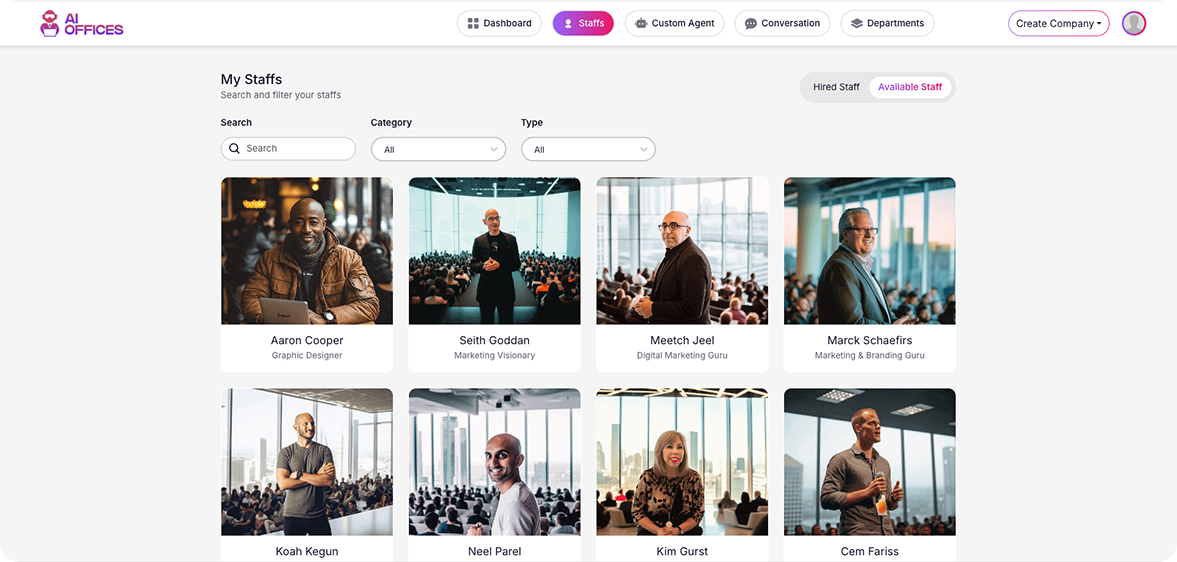
Access upwards of 70 specialized AI employees to handle any task 24/7.
Personalize each of them to align with your brand.
Secure recurring revenue with flexible pricing models for your branded AI assistants.

No icebreaker activities required.

Meet the team: 70 new AI employees at your service. They’re ready to work out of the box. With AIOffices, you can:

  • Manage different projects with ease.
  • Adapt to all aspects of business management from content creation to finances.
  • Provide top-notch customer support round the clock without having to spend a dime on overtime.

Performance reviews for robots?

With analytics features, keep track of your AI employees 24/7.

  • Make informed data-based decisions with the advanced analytics feature.
  • Track deadlines, assign tasks, and generate project reports automatically.
  • Gather and analyze market trends, competitor info, and consumer insights, providing you with top-notch market research.

Business opportunities.

Grow your business overnight. Expand your offerings. Here’s some ideas to get you started:

  • Plan, gather, coordinate and manage webinars or any virtual event.
  • Start a fully automated AI HR Agency.
  • Hire out your bots to other companies.

Plans

AIOffices

$89.00

$37.00

Lifetime

  • All features above included

  • Create 100 Companies

  • Create 100 Departments

  • Create 250 Projects

  • Working Hours Setup for each Agent/Employee

  • All Conversation History Saved

AIOffices Unlimited

$470.00

$267.00

Lifetime

  • All features above included

  • Create an unlimited amount of AI employees.

  • Further expand your business with unlimited tasks and projects.

  • Access an even wider range of skill sets and abilities.

  • Enjoy WhiteLabel rights to sell the software to others.

FAQ

The project management views are too complex for our team. Can we simplify the interface?

I completely understand your need for a simpler project interface! Here's how to customize and streamline the project management experience: Interface simplification options: View customization settings: • Navigate to "Projects" > "View Settings" • Select "Simplified Mode" for a cleaner interface • Use "Hide Advanced Features" to remove complex options • Configure "Custom View Presets" for different team needs • Set appropriate "Default View" for your team's workflow Individual user customization: • Each team member can access "My Preferences" > "Project Display" • Select relevant columns and information density • Choose preferred visualization (Kanban, List, Calendar, etc.) • Set information hierarchy for card/task display • Configure personal notification preferences Team-level simplification: • Create "Role-Based Views" for different team functions • Implement "Guided Workflows" with step-by-step instructions • Set up "Information Progressive Disclosure" to show details only when needed • Use "Project Templates" with pre-configured simplified settings • Enable "Quick Actions" for common tasks
We need to generate reports from our AIOffices data for compliance purposes. What options are available?

Thank you for asking about compliance reporting! Our platform offers several robust reporting options to help you meet regulatory requirements: ✅ Compliance reporting capabilities: Standard report templates: • Navigate to "Reports" > "Compliance Center" • Select from pre-built templates: User Activity Audit Document Access Logs Meeting Attendance Records Data Access Timeline Permission Change History • Configure date ranges and filtering parameters • Schedule automated report generation Custom report creation: • Use "Report Builder" with drag-and-drop fields • Add compliance-specific metadata (timestamps, user IDs, action types) • Create custom filtering rules for relevant data • Design appropriate data visualization for audit reviews • Set report distribution rules and export formats Advanced compliance features: • Implement "Data Retention Reports" for policy adherence • Configure "Anomaly Detection" to flag unusual activities • Set up "Compliance Dashboards" for real-time monitoring • Create "Certification Documentation" for specific regulations • Enable "Tamper-Evident Logging" for data integrity 🔍 Pro tip: Our "Compliance Template Library" includes specialized report formats for common regulatory frameworks (GDPR, HIPAA, SOC 2, etc.). Select your applicable regulations in "Compliance Settings" to access these templates.

The automated meeting transcriptions are missing key information. How can we improve transcription accuracy?

Great question about transcription quality! Accurate meeting records are crucial for productivity. Here's how to improve your transcription results: Transcription optimization strategies: Audio quality improvements: • Navigate to "Meeting Settings" > "Audio Configuration" • Enable "Enhanced Audio Processing" feature • Recommend hardware upgrades to team (external microphones) • Provide "Audio Best Practices" guide to participants • Configure "Voice Isolation" to reduce background noise Transcription engine settings: • Select "High Accuracy Mode" (uses more processing but improves results) • Enable "Speaker Identification" for attributing comments • Configure "Custom Vocabulary" with company-specific terminology • Set appropriate "Industry Context" for better interpretation • Adjust "Speech Recognition Sensitivity" if needed Advanced transcription features: • Use "Pre-meeting Agenda Import" to prime the system with relevant terms • Enable "Multiple Language Detection" for multilingual meetings • Implement "Action Item Highlighting" for key takeaways • Configure "Transcription Review Workflow" for corrections • Set up "Transcription Enhancement Rules" for formatting consistency ⭐ Note: Consider our "Hybrid Transcription" option which combines AI processing with human review for mission-critical meetings where accuracy is paramount.

Our team needs to restrict access to certain AI features based on department. Is this possible?

Thank you for asking about feature access control! Yes, our platform offers robust department-based permission management. Here's how to implement it: Department-based access control: Permission structure setup: • Navigate to "Administration" > "Access Control" • Select "Department-Based Permissions" option • Create or import your department structure • Assign users to appropriate departments • Set "Permission Inheritance" rules (cascade from parent departments) Feature restriction options: • Configure access to specific modules: Document management Meeting transcription Calendar management Project workflows Analytics dashboard • Set permission levels (View, Edit, Admin, No Access) • Create "Custom Permission Bundles" for common role types • Configure "Temporary Access Grants" for cross-department collaboration Advanced access management: • Implement "Multi-level Approvals" for sensitive features • Set up "Usage Quotas" by department • Create "Access Schedules" for time-limited feature availability • Configure "Access Request Workflows" for exception handling • Enable "Access Audit Logging" for compliance documentation 🔍 Pro tip: Our "Permission Simulation" tool allows administrators to see the system from different users' perspectives, helping identify any unintended access restrictions or permissions.

The AI assistant keeps scheduling meetings outside of our team's working hours. How do we set proper availability?

Excellent question about working hours! Proper availability settings are essential for effective scheduling. Here's how to configure this correctly: ✅ Working hours configuration: Team availability setup: • Navigate to "Settings" > "Scheduling Parameters" • Set "Default Working Hours" for your organization • Configure "Time Zone Settings" for distributed teams • Establish "Break Periods" (lunch, etc.) to block out • Create "Meeting Buffer Times" between appointments Individual availability customization: • Each team member should access "My Profile" > "Availability" • Set personal working hours that override defaults • Mark recurring commitments as "Busy Time" • Configure "Focus Time" periods where meetings are discouraged • Set "Availability Exceptions" for special circumstances Advanced scheduling rules: • Create "Meeting Policies" for different meeting types • Set "Duration Limits" by meeting category • Establish "Scheduling Horizons" (how far in advance meetings can be booked) • Configure "Approval Workflows" for meetings outside working hours • Set up "Team Availability Views" for coordinating across departments ⚠️ Important note: Check that all team members have their time zones correctly set in their profiles. Misaligned time zones are a common cause of inappropriate scheduling.

Our calendar sync is inconsistent, with some meetings not appearing in AIOffices. How do we fix this?

Thank you for highlighting this calendar synchronization issue! Consistent meeting data is crucial for effective scheduling. Here's how to resolve sync problems: Calendar sync troubleshooting: Connection verification: • Navigate to "Calendar Settings" > "Sync Status" • Check authorization status for each connected calendar • Verify "Last Successful Sync" timestamp • Review "Sync Error Log" for specific failure messages • Confirm correct calendar selection from available options Common sync issues and solutions: • Problem: Permission restrictions blocking calendar access Solution: Update permissions in source calendar system • Problem: Sync frequency too infrequent Solution: Adjust "Sync Interval" (recommended: 15-30 minutes) • Problem: Calendar filter excluding certain meetings Solution: Check "Calendar Filter Settings" for unintended rules • Problem: Recurring meeting pattern compatibility Solution: Enable "Enhanced Recurrence Support" Advanced sync optimization: • Implement "Two-Way Sync" for bidirectional updates • Enable "Conflict Resolution" with preferred calendar priority • Set up "Manual Sync Triggers" for immediate updates • Configure "Meeting Categorization" for better organization • Use "Calendar Diagnostics" to identify specific sync patterns 🔍 Pro tip: Create a test calendar event with a unique naming convention (e.g., "TEST-SYNC-1234") and track how long it takes to appear in AIOffices. This can help isolate timing or filtering issues.

The document collaboration features seem limited. Can multiple team members edit the same document simultaneously?

Great question about collaborative document editing! Yes, our platform does support simultaneous multi-user editing. Here's how to optimize this functionality: Document collaboration capabilities: Enabling simultaneous editing: • Navigate to "Document Center" > "Collaboration Settings" • Enable "Real-Time Collaboration" toggle • Set "Edit Visibility" to "Immediate" (shows changes as they happen) • Configure "User Presence Indicators" to show who's currently editing • Select appropriate "Conflict Resolution" method (Last Write Wins or Merge Changes) Advanced collaboration features: • "Edit Zones" allow assigning different sections to specific team members • "Change Tracking" with author attribution and timestamps • "Comment Threads" for discussing specific document elements • "Version History" with comparison and rollback capabilities • "Notification Controls" for edit alerts and mention notifications Collaboration management: • Set appropriate "Permission Levels" for different team members • Configure "Document Locking" options if needed • Enable "Suggested Edits" mode for approval workflows • Set up "Editing Deadlines" with automatic notifications • Create "Collaboration Templates" with predefined structures and roles ⭐ Note: For optimal performance, we recommend limiting simultaneous editors to 15-20 users per document. For larger teams, consider our "Section Editing" approach to distribute work across document segments.

Our team is having trouble with the AI assistant misunderstanding complex project terminology. How can we improve this?

Thank you for bringing up this terminology issue! Specialized vocabulary can definitely pose challenges. Here's how to improve the AI's understanding of your project terminology: ✅ Terminology training solutions: Custom vocabulary setup: • Navigate to "AI Configuration" > "Knowledge Base" • Select "Custom Terminology" option • Add industry-specific terms using "Bulk Import" or manual entry • Include definitions, synonyms, and usage examples for each term • Set "Domain Context" to help the AI understand term relationships Contextual learning methods: • Upload project documentation to "Reference Materials" • Enable "Continuous Learning" from team conversations • Create "Term Relationships" to establish concept hierarchies • Use "Correction Tracking" to flag and fix misunderstandings • Implement "Context Tags" for terms with multiple meanings Advanced terminology management: • Develop "Terminology Glossaries" by project or department • Set up "Term Detection Alerts" for ambiguous usage • Configure "Terminology Standardization" to suggest preferred terms • Enable "Concept Mapping" for visual relationship representation • Implement "Terminology Version Control" for evolving vocabularies 🔍 Pro tip: Our "Terminology Audit" tool can analyze past conversations to identify which specific terms are causing the most confusion, allowing you to prioritize your customization efforts.

Reviews

Dearcy Scott

5/5
I run two online businesses and needed help with admin—but hiring full-time staff wasn’t in the budget. Enter AIOffices. I created an AI office manager, accountant, and even a virtual project coordinator. They take care of task updates, draft client follow-ups, organize receipts, and prep monthly reports. The tone and accuracy are spot on once you train them. What used to feel like chaos now feels structured. Honestly, this gave me back my weekends.

Jessica Aponte

5/5
AIOffices is like hiring a dream team that doesn’t sleep, complain, or miss deadlines. I created specialized AI workers for bookkeeping, customer service, and task management. The finance assistant even reconciles Stripe payouts and preps expense summaries for tax season! It’s fully customizable—each “worker” has its own tone and task list. I don’t micromanage, I just check the output and move on. My ops costs are down and my mental bandwidth is way up. Game-changer for solopreneurs and lean teams.

Ruth Penaranda

4/5
My team is spread across different time zones, but AI Offices keeps us connected. Meetings are scheduled automatically, and project updates are seamless!

Daniel Morel

4/5
AI Offices automates scheduling, note-taking, and communication. It feels like having a personal assistant for my entire team!

Michael Rennison

3/5
I was skeptical at first—“AI office workers” sounded like a gimmick. But after setting up roles inside AIOffices, I realized I had a fully functioning back office. One agent handles customer replies, another prepares weekly KPI reports, and another monitors task deadlines for my virtual team. It’s not perfect—you’ll want to QA everything early on—but once dialed in, it’s really dependable. Would love calendar integration and voice-based prompts, but even now, it’s saving me 15+ hours/week.

Similar Products